What is a Sportreact timing gate?
Sportreact timing gates use laser sensors between two pods to measure how long it takes an athlete to move between points. They provide accurate data for:
-
Sprint speed
-
Acceleration and deceleration
-
Agility and change of direction
-
Split times and velocity
In Twin mode, one timing gate is made by pairing two pods facing each other. This creates a traditional laser gate setup, where the athlete breaks the beam between the two pods.
In Flex mode, each pod can work as its own standalone timing gate, so you don’t need to pair two pods together for every gate. This lets you create more timing points with fewer pods and makes setup faster and more flexible.
Both Twin mode and Flex mode timing gate options are available in the free Sportreact application.
How to set up timing gates in Twin mode:
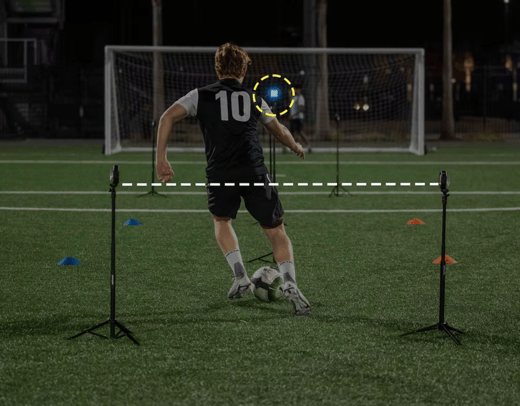
Step 1: Position the pods
Place two pods (even and odd combination) facing each other using tripods. These two pods create one gate.
-
Pods must face each other directly
-
Pods must be at the same height
-
Typical distance between pods: 2–3 meters (maximum up to 10 meters)
Step 2: Check alignment
When aligned correctly:
-
Pods will show a green light
-
The gate will show green in the app
If the gate shows red, alignment needs adjustment.
Step 3: Add gate distance (optional but recommended)
Tap Add distance in the app and enter the distance between gates. This allows the system to calculate velocity and other performance metrics.
How to create a timing gate workout
-
Open the app and tap Create Workout
-
Select Timing System
-
Go to Setup Gates
-
Select the gates you want to use
-
Drag and reorder gates if needed (hold the 6 dots to the left of the gate and drag the gate into position)
-
Add distances between gates if required
-
Save and start the workout
With Twin mode, you can use up to 6 gates (12 pods) in one workout.
Note: You need at least 2 connected pods (1 gate) to create a timing workout in a Twin mode.
With Flex mode, you can use up to 12 gates (12 pods) in one workout.
Note: You need at least 1 pod (1 gate) to create a timing workout in a Flex mode
Example setups
Sprint test (0–10–30 meters)
Use 3 gates:
-
Gate 1: Start
-
Gate 2: 10-meter split
-
Gate 3: Finish line
5-10-5 agility test
Use 1 gate placed at the center line. The athlete runs back and forth through the same gate.
Troubleshooting timing gate alignment
If the gate shows red or does not track correctly, check the following:
Alignment issues
-
Make sure both pods are at the same height
-
Make sure pods are facing each other directly
-
Make sure pods are not tilted up or down
-
Move pods slightly left or right to find proper alignment
-
Tap Retry in the app after adjusting
Obstructions and reflections
-
Make sure nothing is blocking the laser path
-
Avoid mirrors, glass, or shiny surfaces nearby
-
Avoid white walls very close behind pods
-
Make sure no people are standing between pods
Distance and placement
-
Do not place pods too close together
-
Do not exceed the maximum recommended distance
-
Place pods on stable surfaces or tripods
Connection issues
-
Turn pods off and back on
-
Sync pods again in the app
-
Make sure Bluetooth and location are enabled
-
Make sure pods are charged
-
Make sure pod 0 (main pod) is connected
If alignment is correct, the pods and app will show green.
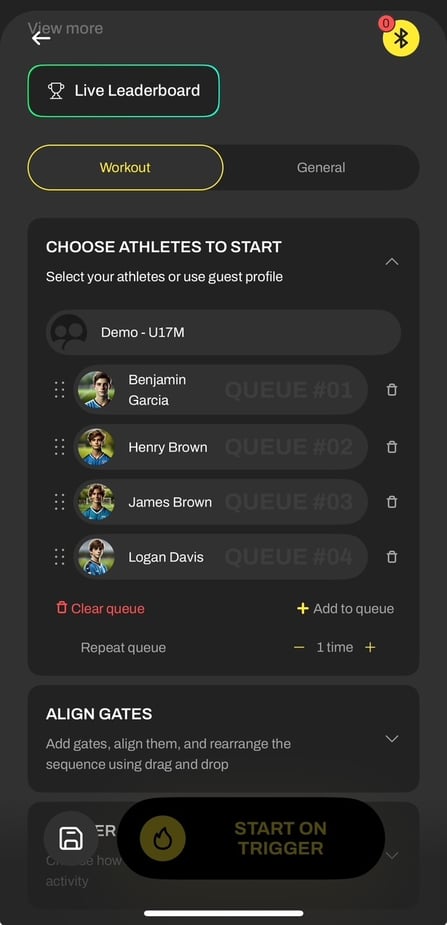
Athlete queue setup
To add athletes:
-
Tap Choose athletes to start
-
Tap Add to queue
-
Select athletes
-
Drag athletes to reorder if needed
-
Tap the trash icon to remove athletes
-
Use Clear queue to reset