
Step 1: Check What Comes in Your Kit
Your Sportreact kit comes in two separate cases.
The first case contains everything related to the pods and charging. Inside this case you’ll find six pods, a charging dock, mounting docks with suction cups, and adjustable straps.
Each pod has several built-in features. On the front, you’ll see LED lights and a tap sensor used for reaction tasks. On the lower front area, there are distance and line sensors that detect movement and crossings. On the side of the pod, you’ll find the power button and charging connector. On the back, there is a connection point where the pod attaches to mounting docks and accessories.
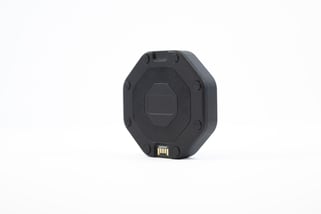
You only need one pod to start a session, but the system supports up to twelve pods working together at the same time. All pods connect wirelessly to the mobile app using Bluetooth.
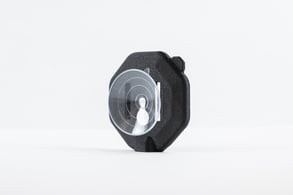
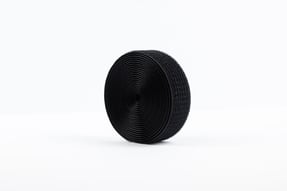
The mounting docks with suction cups let you attach pods to smooth surfaces like walls, floors, or equipment. The straps are used to secure pods around sports equipment such as poles, cones, or goals. To use a strap, cut it to the length you want, thread the ends through the two holes in the back of the mounting dock, place the strap around the equipment, and press the two ends of the strap together to lock it in place.
The second case contains six tripods. These are used when you want to place pods at different heights or angles. You can also purchase extra pods and tripods separately if you want to expand your setup later.
Step 2: Power On and Prepare the Pods
Peel off the protective stickers from the front of the pods.
Start by turning on each pod. Press and hold the power button until the pod lights up.
Step 3: Charge the Pods
Place the pods into the charging dock. Each dock can charge up to six pods at the same time.
Make sure each pod is fully seated in the charger so the connectors line up correctly. When a pod is charging, you’ll see a charging animation on the pod. The charging dock also has a status indicator that shows when all pods are fully charged.
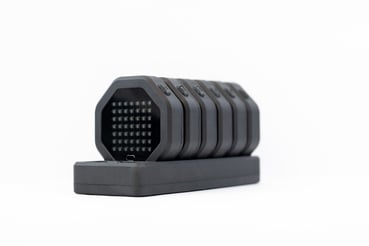
It’s best to fully charge all pods before your first training session.
Step 4: Check Battery Status
To quickly check a pod’s battery level, turn the pod on and tap the screen. A battery icon will appear showing the current power level.
For a more detailed battery check, connect the pods to the mobile app, select the set you’re using, and open the pod settings. This will show you the exact battery status for each pod.
Step 5: Set Up Mounting Accessories
If you are using suction cups attach the mounting doc to the back of the pod.
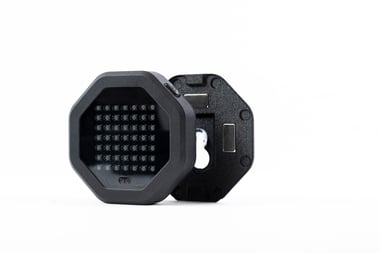
If you are using tripods, attach the mounting dock to the tripod using the standard UNC screw on the tripod head. Once the dock is secured, place the pod into the dock.
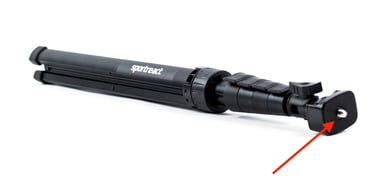
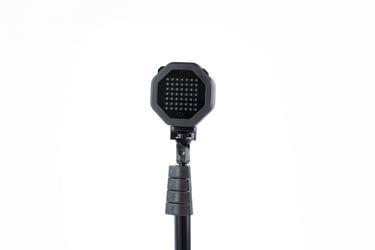
Step 6: Open and Adjust the Tripods
To open the tripod, pull the three legs outward until the tripod stands securely on the ground.
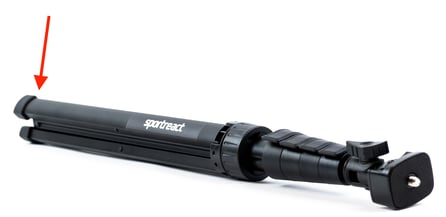
Next, extend the tripod neck if you want more height. There are four extension sections. To extend a section, flip the locking lever open, pull the leg to the desired height, then close the lever to lock it in place. You can extend as many or as few sections as you need.
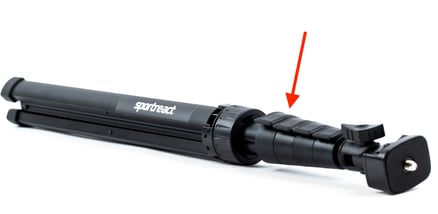
The tripod head can tilt up to 180 degrees and rotate a full 360 degrees, allowing you to position the pod exactly where you want it for different drills and angles.
Step 7: Connect to the App and Start Training
Once your pods are charged and mounted where you want them continue to the mobile, open the mobile app and continue here.
Tech Specs
Vibration sensor: 3-Axis Digital Accelerometer
Proximity sensor: Distance Ranging Time-of-Flight sensor
Laser sensor: Infrared pod-to-pod signal detection
Starter Kit weight: 14.3lb (6.5 kg)
Resistance: Dust-tight, water & heat-resistant (IP66)
Charging time: 3.5 hours
Time unit: 1/1000th of a second
Maximum connections: 12 pods - 12 reaction lights or 6 gates