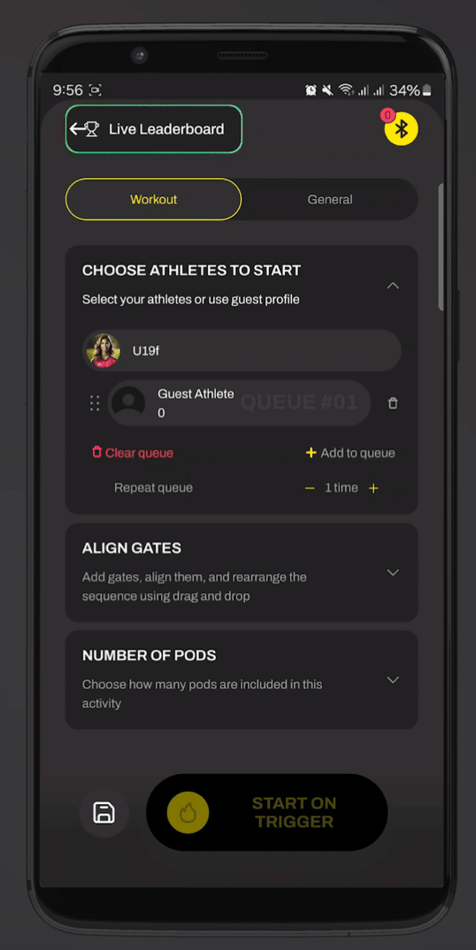
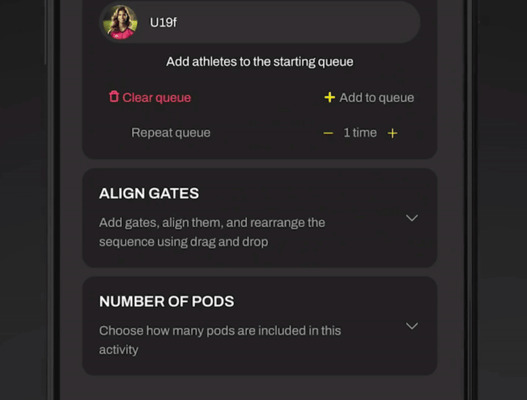
In the “Choose Athletes to Start” tab, you’ll find the Repeat Queue option. This feature lets you automatically repeat the same group of athletes for multiple rounds.
When you enable Repeat Queue, the system will cycle through the selected athletes the number of times you choose and save the data based on their position in the queue. You can always rearrange athletes position during the activity with drag-and-drop option.
It's important to note that, after each full round (when all athletes in the queue complete the drill), you must press button Next for the next round to start. Then, drill will upload once again, and athletes can continue with hands-free timing.
How to enable Repeat Queue?
Navigate using +/- buttons next to Repeat Queue option to choose how many times you wish to repeat the group.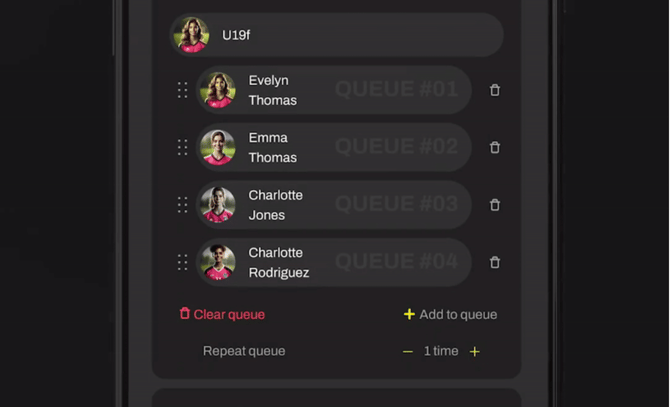
You have a few options for handling repetitions:
Option 1: Repeat Queue (Manual Between Rounds)
1) Add your athletes to the queue once
2) Select Repeat queue
3) After each round (when all athletes finish the drill), press Next
4) The drill will reload for the next repetition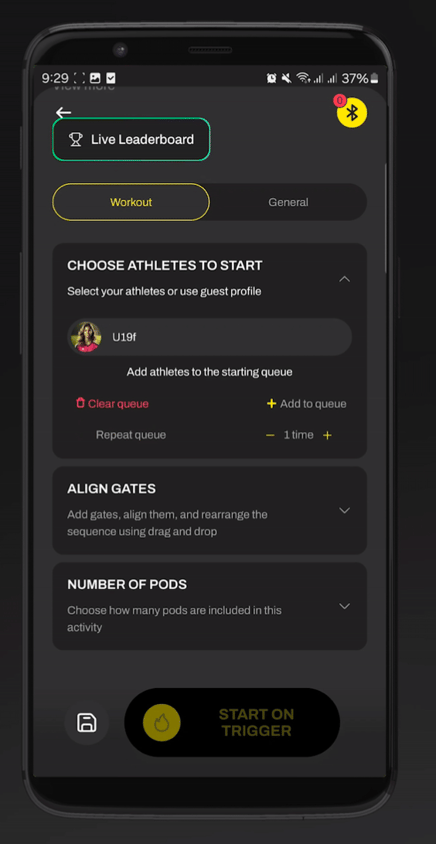
Option 2: Fully Hands-Free (Pre-loaded Reps - without pressing Next after round)
1) Add the same athletes to the queue multiple times
- This allows athletes to go through the course multiple times without the need for the coach to touch their mobile phone
- Athletes must follow the queue order for data to save correctly
- You can rearrange them during the session by dragging and dropping their names in the queue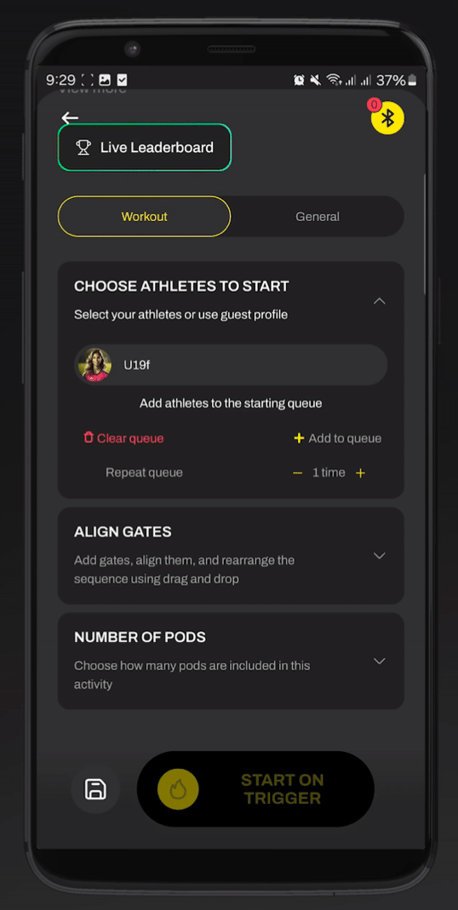
Option 3: Solo or Small Group (Back-to-Back Reps)
- Add one or two athletes multiple times in a row
- Each repetition will be saved under their profile
Option 4: Guest Mode (No Data Saved)
Add multiple Guest Profiles to match the number of total repetitions
No data will be saved to profiles, but the drill will run hands-free