
How "Scan and start" kit helps?
NFC bands allow coaches to instantly connect an athlete's identity to the Sportreact system during each drill, enabling hands-free timing and automated data collection.
Automated Timing
The system automatically starts the drill and records start, split, and finish times as athletes pass through timing gates; or total activity time, fastest/average reactions and more as they trigger reaction system drills.
Data Capture & Auto-calculations
All data is seamlessly recorded and saved to athlete's profile. Sportreact system saves total/split times, and calculates velocity, acceleration, force and power in real time. Keep in mind that there must be an internet connection on the device for this data to save.
Instant Analytics
Coaches can immediately review results in all metrics, compare performances, and monitor trends during the drill by observing live analytics, live leaderboard, or afterwards in the Analytics section of the app.
To be able to optimize your data collection you will need:
1) Scan and start wristbands
2) NFC reader
3) Sportreact device
4) Sportreact PLUS subscription
Follow the step-by-step instructions below to set up and execute drills with the "Scan and Start Kit."
1. Distribute the NFC Wristbands
Ensure each athlete has an assigned NFC band.

2. Connect the NFC Reader
Turn on NFC:
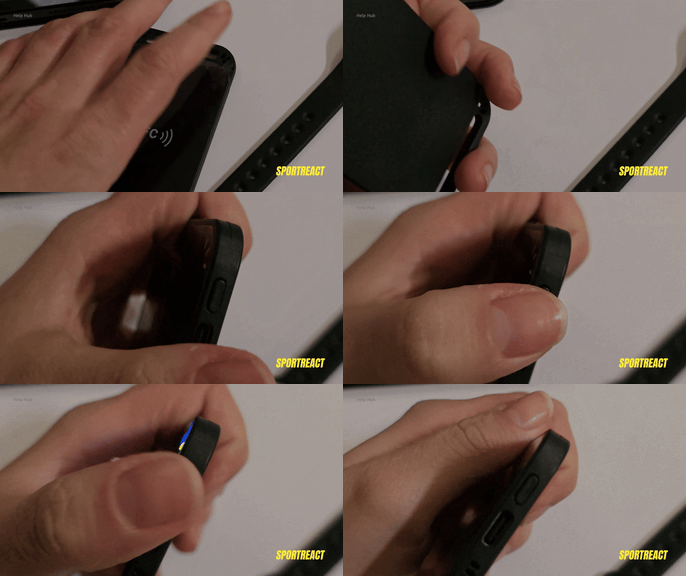
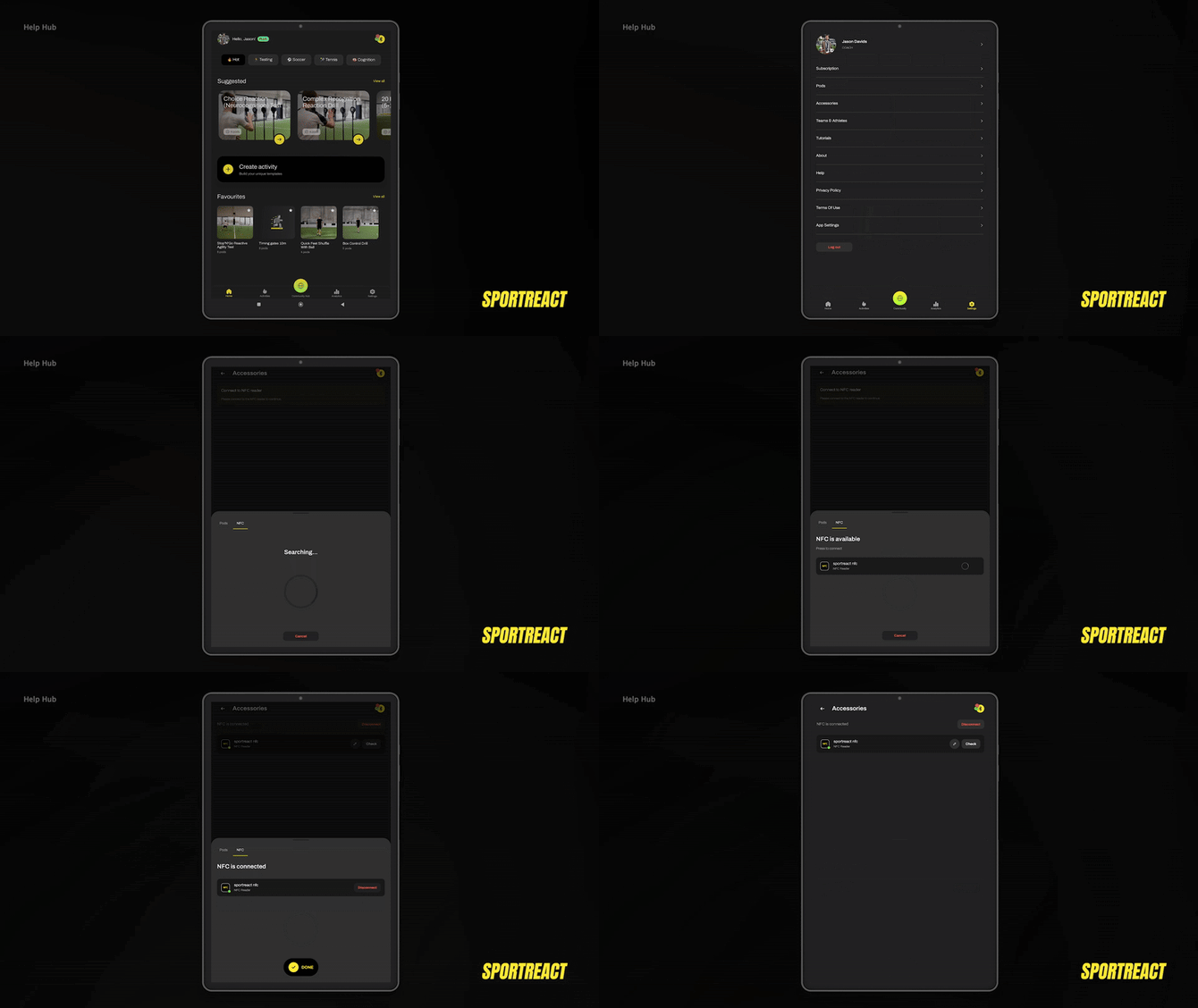
Pair the NFC reader with the the Sportreact app via Bluetooth:
3. Set up the activity
Choose or customize the desired drill within the app.
If you're using a timing gate system, input the distance between the gates.
4. Link an athlete to the App
Press and click assign to athletes:
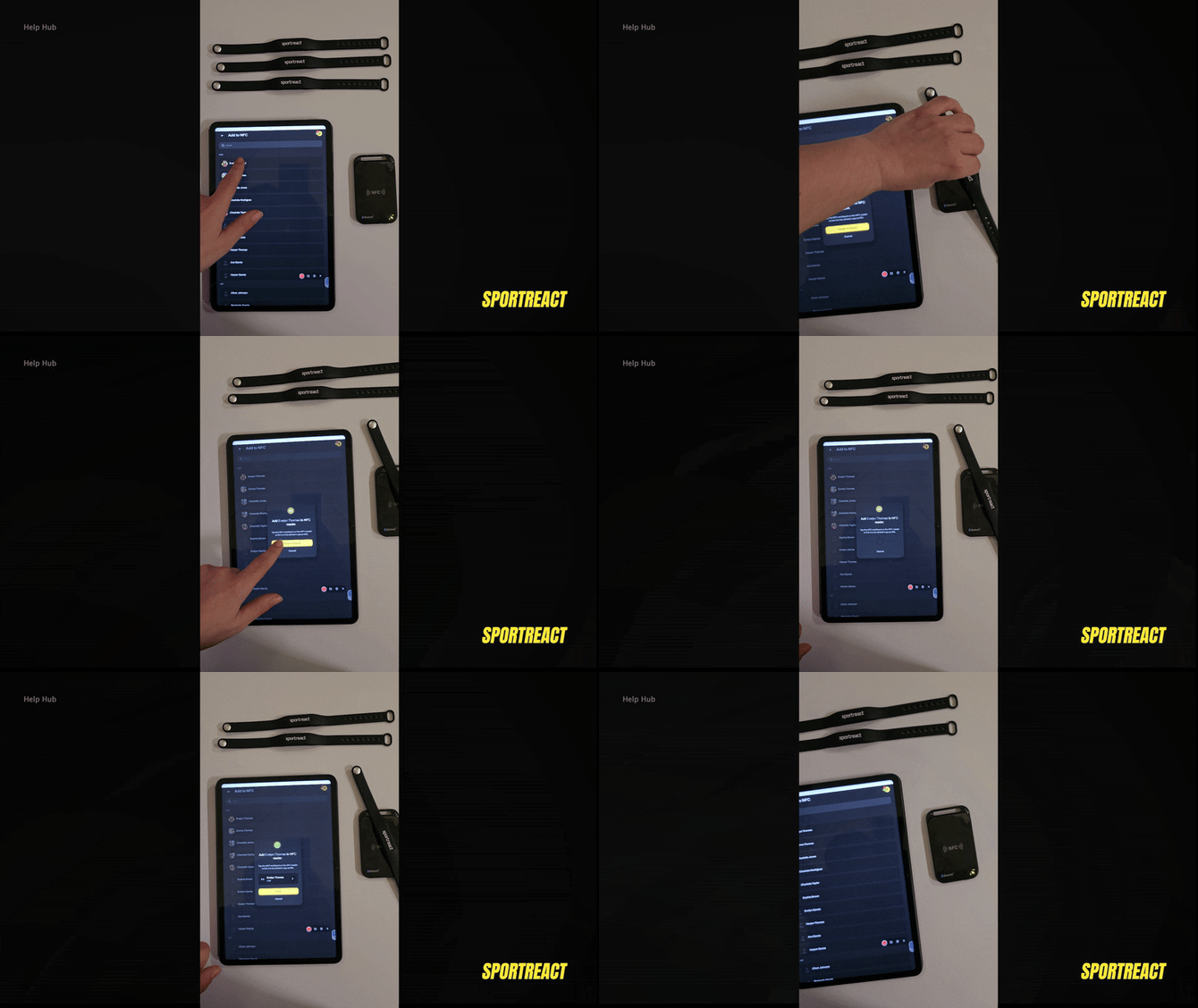
Before each attempt, the athlete should tap their NFC band on the reader to register. This ensures the system recognizes the athlete's participation.
5. Start the drill
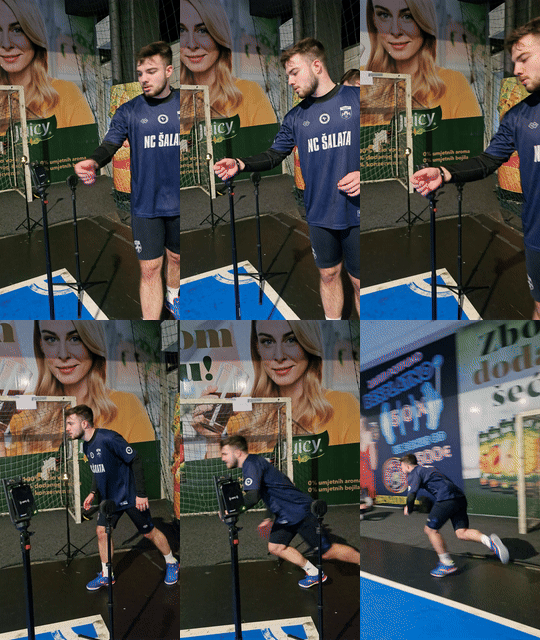
At the start line, the athlete taps their NFC wristband on an NFC reader, instantly linking their identity to the rep.
TIMING SYSTEM:
- The athlete must wait 2-3 seconds as the system prepares ("Activity preparing" will appear on the screen).
- When "Ready" appears on the screen or when the initial gates show a GREEN SQUARE, the activity is loaded and the athlete may start their attempt.
REACTION; RAGS & CHALLENGE MODE:
- The reaction system will begin a countdown before the drill starts.
6. Start timing
TIMING SYSTEM:
- The athlete triggers the first gate by passing through (while wearing their NFC band!). This starts the timing sequence.
REACTION; RAGS & CHALLENGE MODE:
- The athlete must wait until the countdown completes before beginning the drill.
7. Record results
- The system automatically records the athlete’s performance once they complete the drill (by passing through the final gate or deactivating the last pod).
- The recorded data includes split times and deactivation times.
8. Prepare for the next athlete
Once the first athlete finishes, the next athlete taps the NFC reader to register their attempt.
When the first gates change to GREEN SQUARE or the app signals “Ready,” the new athlete can begin their run.
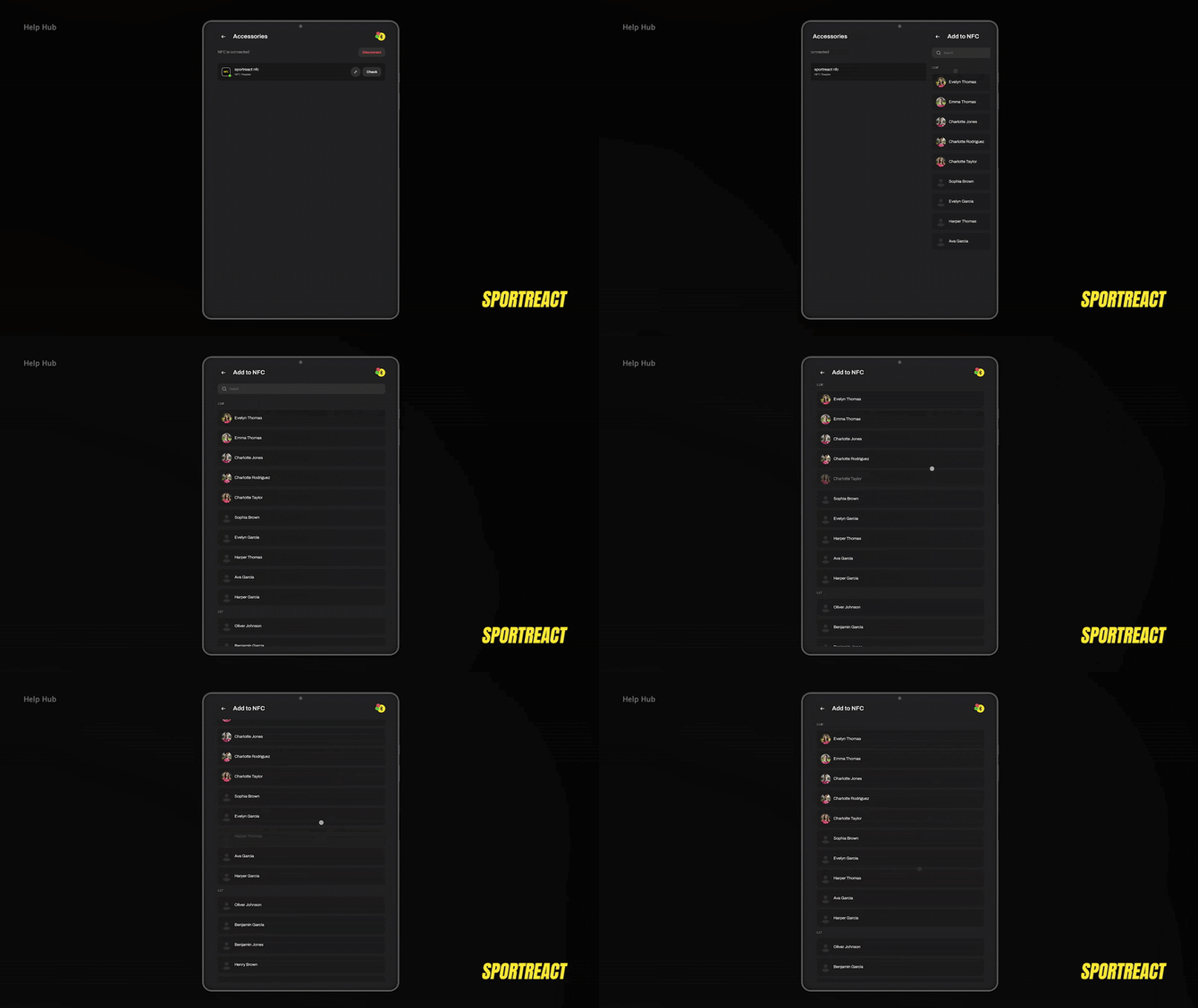
Add athletes to the NFC reader list:
9. See the results
When all athletes finish their reps, click Finish to see the results.
10. Save the data
If you want to save the data, press button Save. Fill out all the necessary fields in the "Save reps" section:
Name - name your sessions
Description - write a short description
Session tags - choose tags you want to attribute to your session so you can filter these reps in the analysis
If you want to continue with your training, click the back arrow (<-).
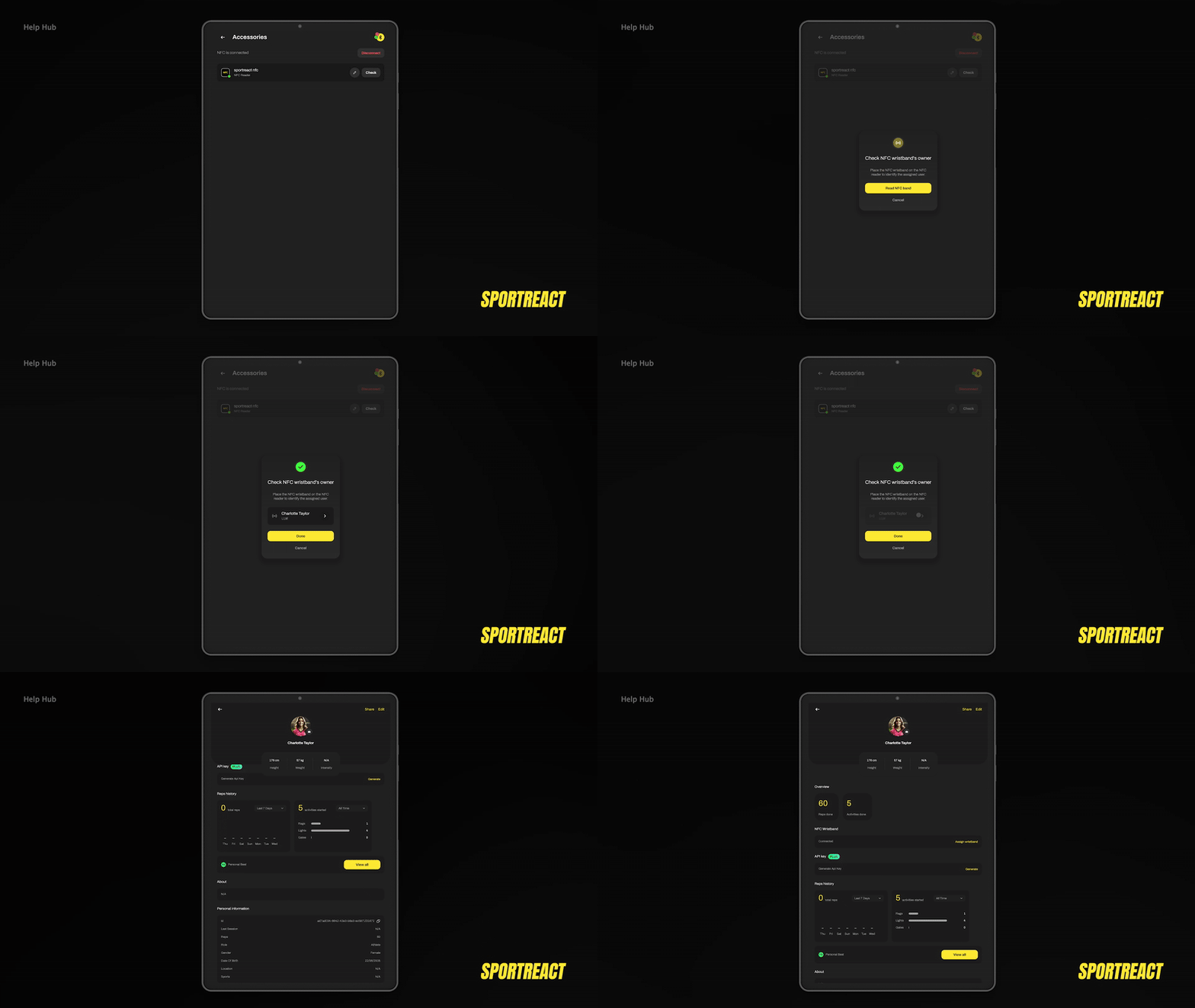
Check a wristband’s owner:
Note: NFC readers come with a dedicated charging cable. Please use only this cable to charge the device as other replacements will not work.