
The Live Leaderboard feature lets you view and share live exercise results on any screen — from TVs to tablets to desktop browsers. Follow this guide to get your leaderboard up and running in just a few minutes!
To set up a live leaderboard prepare:
- a mobile phone or a tablet with Sportreact app
- external display device with internet access (phone, tablet, laptop, TV).
To view your leaderboard you have to:
- IN SPORTREACT APP: Create a leaderboard and generate an access CODE (alternative: open a saved leaderboard).
- ON EXTERNAL DISPLAY: Open leaderboard.sportreact.com page on any web browser and enter the access code.
Below are step-by-step instructions on how to create your leaderboard, generate the access code and show it on the external display.
Getting Started
1) In the Sportreact app, from the Home screen, navigate to any exercise template, custom activity or Community Hub activity of your choice.
2) Open the Start activity screen of the activity you wish to view.
3) Tap the Live Leaderboard button (marked green).
Starting Your Leaderboard
4) After you tap the Live leaderboard button, Leaderboards screen will open.

To get your Leaderboard live and running, make sure to:
5) Toggle the Leaderboard mode to ON.
6) Tap the button Create new leaderboard or choose one of the already saved leaderboards.
Creating New Leaderboard
If you chose to create a new leaderboard, Create leaderboard screen will open.
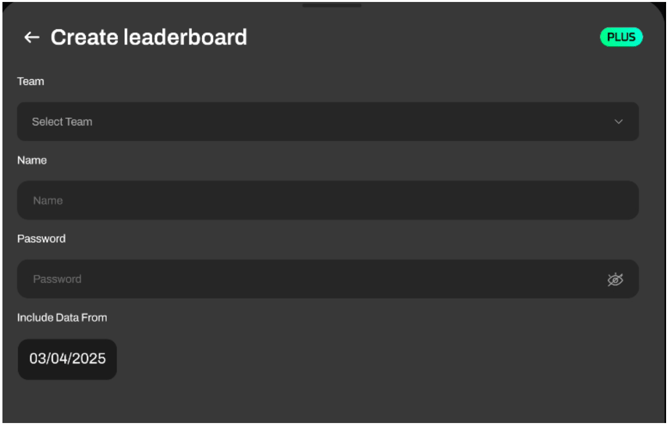
On the Create leaderboard screen make sure to:
7) Select Team
Choose the team from the list that will participate in this leaderboard.
8) Name Your Leaderboard
Enter a name for the leaderboard to help you identify it later.
Set a Password (Optional)
You may enter a password if you want to restrict access to the display.
9) Choose a Date Range by tapping on the button with today's date.
Choose a Date Range instructions:
- To display only results from the current session, select today’s date in the calendar.
- To include results from previous sessions, choose a custom time period.
10) When you're finished, tap the Create button (in the bottom right corner).
Your leaderboard is now created!
Screen with access CODE
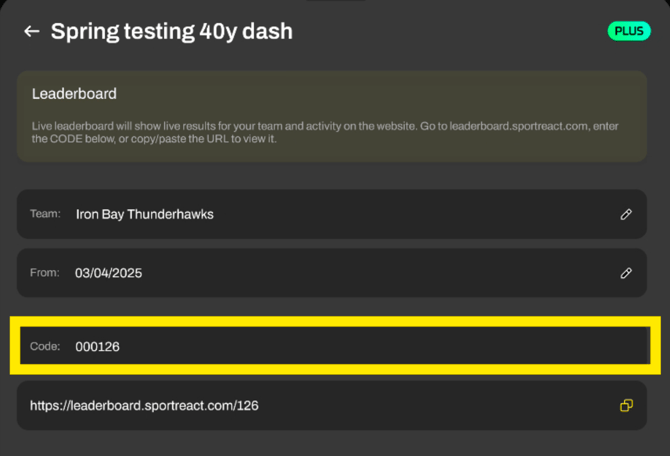
After you created a new leaderboard, or selected a saved one, the Leaderboard screen appears. Here you can see your custom leaderboard name and a unique leaderboard code (marked with a yellow square). Use the code to access the leaderboard through a web browser on the external display.
Access on the external display
11) Next, turn on the external device you want to use to display your leaderboard (phone, tablet, laptop, monitor, TV).
12) Make sure a chosen external display device has internet access.
13) Open the internet browser of your choice on the external display device.
14) After completing the previous steps, you can access the Live Leaderboard in two ways:
14a) Option 1: Manual Code Entry
- Open leaderboard.sportreact.com by writing it in the top bar of your web browser on the external display (image below). Press Search.
(If the page doesn't open, try writing https://leaderboard.sportreact.com).

- The leaderboard access page will appear (view below).

On this page, please enter the code that you previously generated in the Sportreact app. ⬇️

IMPORTANT: In each new Leaderboard you create, a different code will be generated - always based on five numerical digits, (e.g. 000126).
If you set a password in previous steps, enter it; if not, leave this field blank.
Press the button Go to Leadebord, and your leaderboard will open.
14b) Option 2: Direct Link
Second option allows you to just copy the Leaderboard URL link in your web browser.
- Copy Leaderboard URL link you see on your app screen (yellow square below) by clicking the Copy button.
IMPORTANT: each new leaderboard has a custom link.
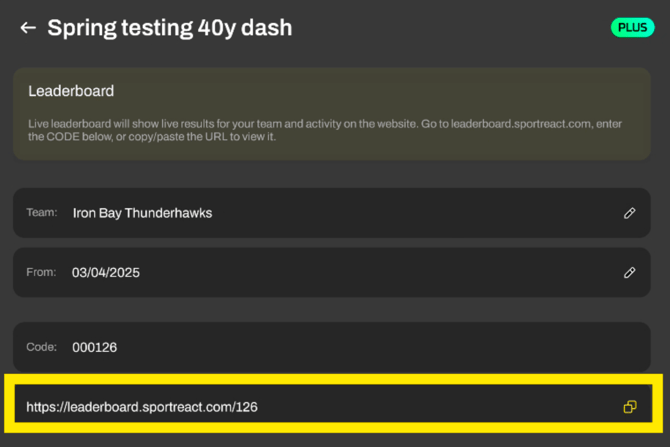
- Paste the link into any web browser on your external display and press Search/Enter.

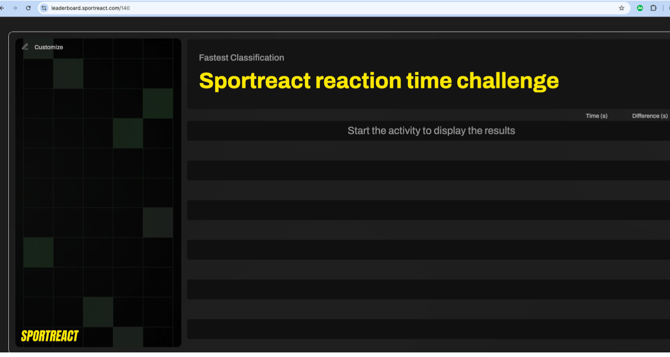
15) After finishing one of two proposed options, Live Leaderboard will open. It will update in real-time during the activity.
Here you can view ongoing exercise results, or view the results of previous exercises.
❗ Save Leaderboard
16) Saving Your Leaderboard Session
Once you’ve opened your leaderboard on an external screen, tap Save on your mobile app. All activity data from this session will now be stored.
You can later find this session under Activity Report, marked with a “leaderboard” tag.