
If you don’t yet have a saved drill to publish to the Community Hub, start with Section A to create one. If you’ve already created custom activities and just want to publish them, skip ahead to Section B.
A) Save the custom activity
Step 1: Create a New Activity
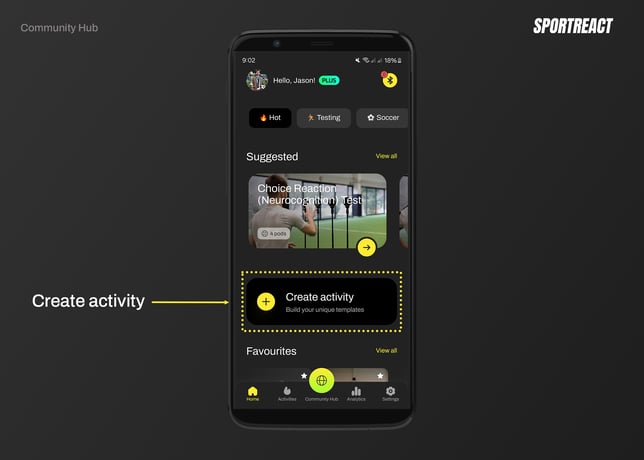
From the Homepage, click the “Create activity” button.
Step 2: Customize the Drill
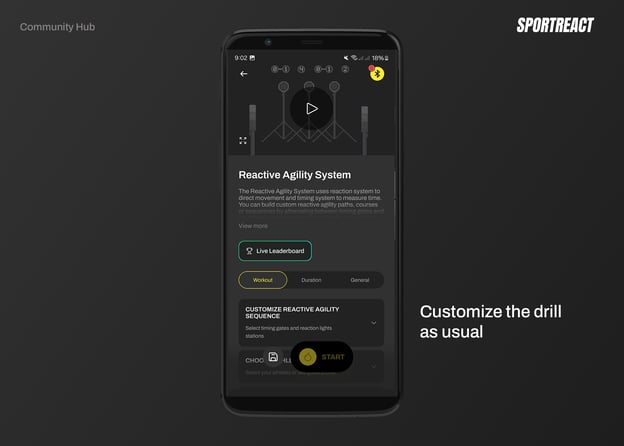
Choose the mode and system logic you want.
Adjust the duration, signal pattern, order, and other settings as needed.
Step 3: Save the Activity
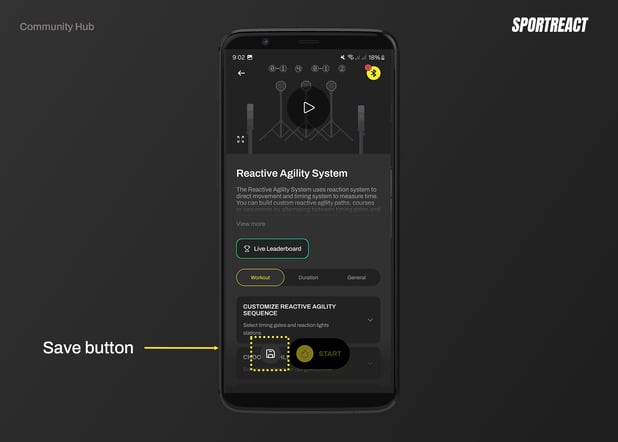
When customization is complete, press “Save” 
Step 4: Enter Activity Details
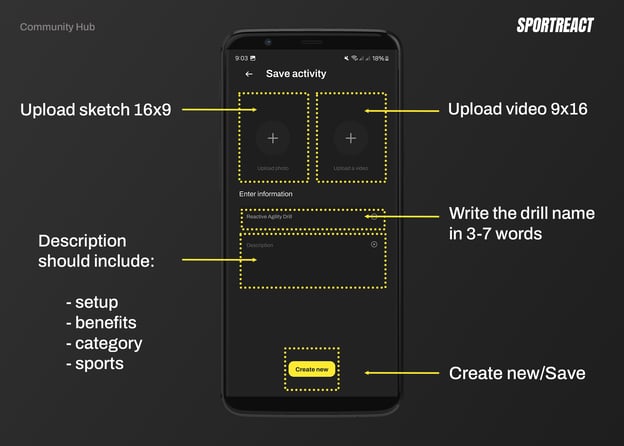
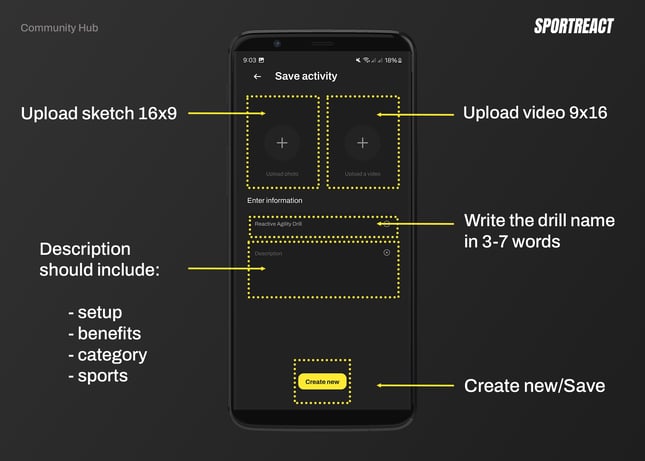
The “Save activity” screen will appear.
Upload:
- A sketch (16:9 ratio)
- A video (9:16 ratio)
Enter:
Name of the drill (3 to 7 words)
Description with clear instructions of setup, use cases and benefits.
Click “Create new” to save the activity.
**If you didn't adjust the descriptions or photos perfectly, don’t worry, you can edit everything later.
Step 5: Access Your Saved Activity
Go to Activities > My Activities to view your saved drill.
This is where you can also begin the publishing process.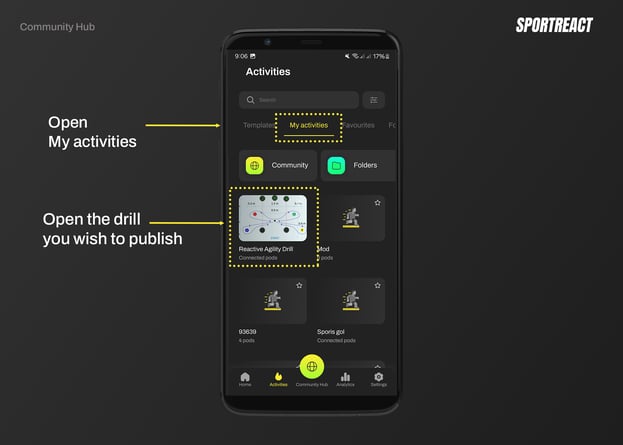
B) PUBLISH THE ACTIVITY TO THE COMMUNITY HUB
Step 1: Open Your Drill
Navigate to Activities > My Activities.
Select the drill you want to publish.
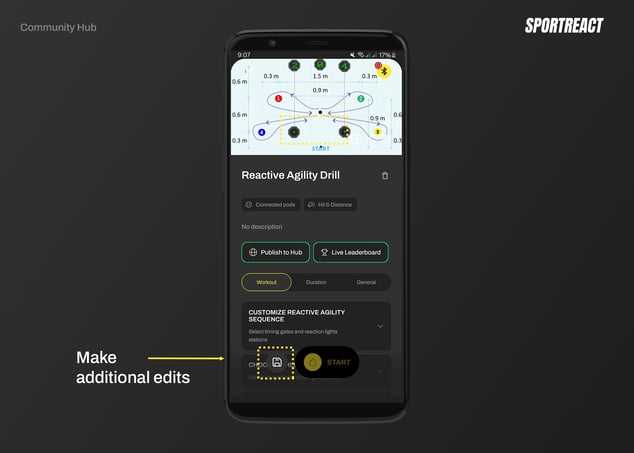
Step 2: Make Final Adjustments (Optional)
Click the “Edit” button if you need to make changes.
If not already done, upload:
- A sketch or photo (16:9 ratio)
- A video (9:16 ratio)
Ensure the name and description are complete and accurate.
**When uploading a photo and video, please wait until media finishes uploading.
Step 3: Save Final Edits
After making updates, click “Save” to save your edits (If you press "Create new" system will create a new drill). Please wait a few minutes before continuing to the next step so the media finishes uploading.
Step 4: Publish to the Community Hub
When you’re satisfied with the drill, click “Publish to the Hub”.
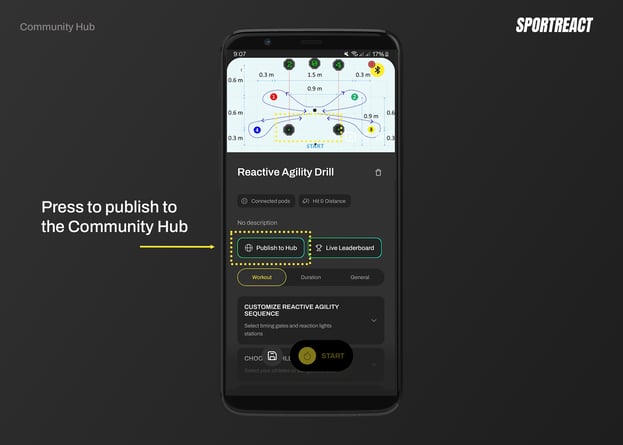
Step 5: Confirm Publishing
Confirm your choice to publish.
IMPORTANT: You will notice that the drill didn’t show in the “Community hub”. That’s okay! Our team has to approve the drill, and afterwards it will be showcased and ready for use.
Troubleshooting: Media Upload Not Recognized
Issue:
You’ve uploaded a video and sketch, but the app still says the media hasn’t been uploaded.
Solution:
After uploading your video and sketch:
1) Wait for the upload to fully complete.
Uploads may take a few moments, depending on your connection.
Do not press "Save" until the upload is fully finished.
2) Once uploaded, click "Save".
Then wait a few minutes before clicking "Publish to the Hub".
This allows the app to properly register the uploaded files.
Bulk Upload Tip:
If you're publishing multiple drills, it's best to first Save all drills individually.
Then, go to My Activities and publish each one from there.
Drill Submission Guidelines
Below are the detailed requirements for the drills you’ll submit:
a) Video guidelines
- Upload a short video (up to 60s) showcasing the drill.
- It has to be clear (preferably HD) and shot in a well-lit environment.
- Aspect ratio: 9:16 (Instagram Story - vertical format).
- Ensure that the signs on the pods are visible, and that the athlete's movement is clearly visible and easy to follow.
b) Sketch guidelines
- Upload a sketch 16:9 (horizontal format) showcasing the drill and distances of the pods and/or gates. This data will be important for an upcoming feature that will allow for advanced analytics and calculations for the drills inside of a Community hub.
c) Description guidelines
Drill descriptions should include the following elements (example below):
Drill Name:
A concise and descriptive name for the drill (3-7 words).
Instructions: setup & how to perform
Step-by-step instructions on how to set up the drills and how an athlete should perform them. Please ensure that the instructions are clear, easy to follow, and in simple English.
Benefits:
Briefly outline the benefits of the drill for a specific type of training you are conducting.
Use Cases:
Specify the type of training and the athletes for whom this drill is most suitable.
Category:
Place every drill into applicable categories: reactions, agility, speed, cognition, decision making, recovery.
Sports:
Specify the sports for which this drill would be most beneficial.
d) Good-practice Examples
Drill text example:
Drill name: Reactive lateral hurdle run
Instructions: The athlete stands beside a line of hurdles, with the pods placed on the ground between each hurdle, within leg's reach. The distance between the hurdles and between each module is 20 in (50.8 cm). A total of 20 visual signals (e.g., letters and numbers) will be displayed, with the color and type of the signal varying. The athlete's task is to move laterally over the hurdles, deactivating correct signal (e.g., letter "s") while maintaining single-leg balance on the standing leg. Additionally, the athlete ensures that the activated module is deactivated with the opposite leg from the direction of the lateral movement (e.g., if moving laterally to the right, the athlete maintains balance on the right leg while deactivating the module with the left leg, and vice versa). The test result is the total reaction time to 20 visual signals. The exercise should be performed for 2-3 sets
Benefits: Static-dynamic stability of the lower body. Improvement of movement mechanics. Low-intensity plyometrics as an introduction to high-intensity plyometrics in the next phase of rehabilitation.
Use cases: Apply in the "return to sport" rehabilitation phase. For athletes that suffered ankle injuries (sprains and fracture), knee injuries (ligg. ACL, MCL, PCL, LCL, meniscus injury...), tendinopathy (patellar, achilies...) etc.
Category: reactions, recovery
Sports: basketball, volleyball, tennis