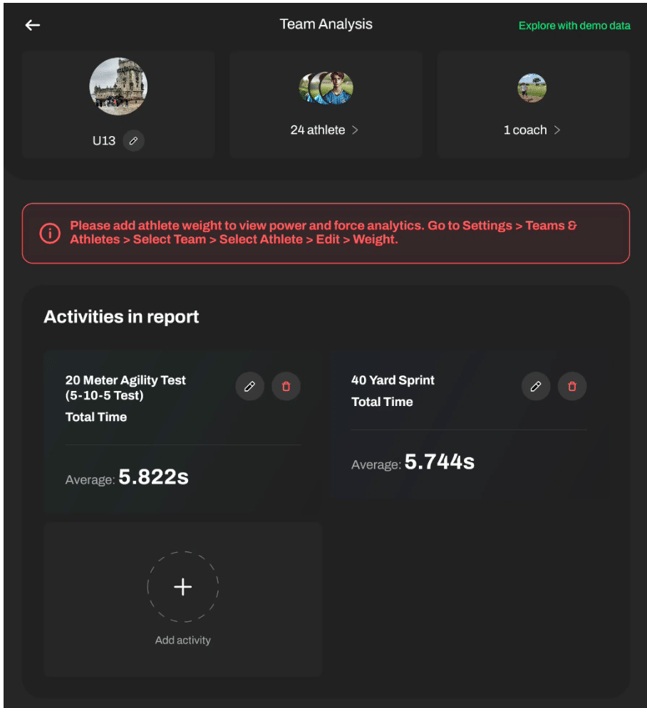
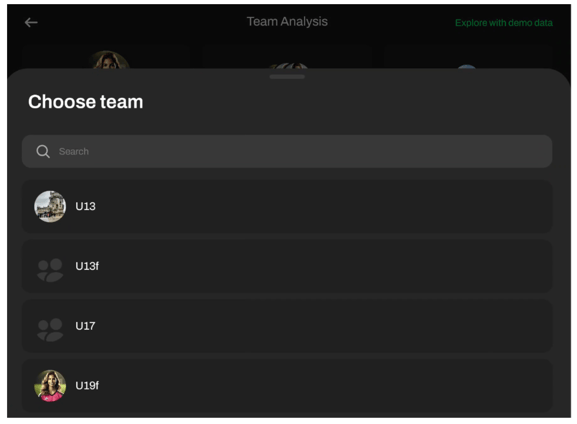
In the header, press the Edit button  to select a team you'd like to analyze. Your primary team will be set as default.
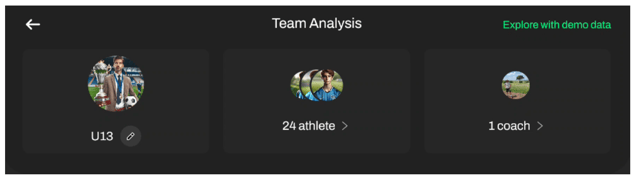
The header will showcase the number of athletes and coaches in this team. If you'd like to review these details, press the Show more button  .
.
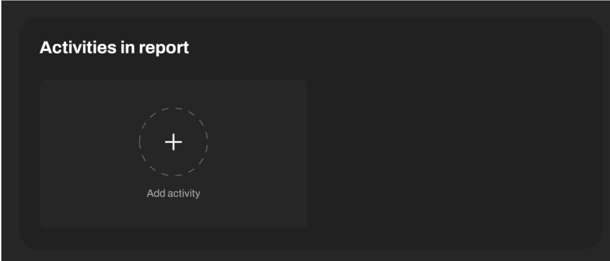
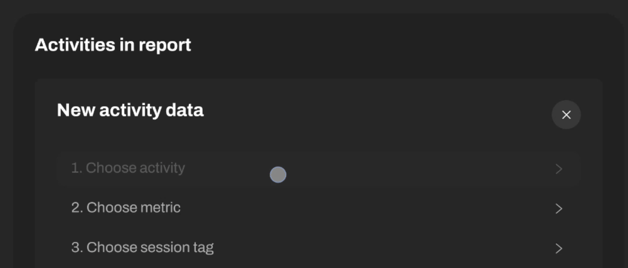
Next, select the activities you want to include in your anaysis by pressing the button Add activity.
Select activity, metrics and session tags.
Select the time period:

When analyzing performance data, you can choose the time range you want to include in the analysis. This will incorporate all stored repetitions during the selected period, unless you specifically select a single session tag. You can choose from the following preset time ranges: 1 week, 4 weeks, 1 year, Month, Year, or All (including all stored repetitions).
If you want to select a specific time period:
a) Click the Custom button (last in line).
b) Use the calendar to choose your start and end dates.
c) Confirm your selection to apply the custom date range to the analysis.
The data for the selected activity will show. If you'd like to compare several activities, or view athletes' performance across several activities on Athletes scoreboard, you can add more activities. Just scroll up to the header and add activity by repeating the previous steps.