
How do I check for a Firmware update?
- Under Settings, click on Pods
- Click on Update
- Click on Check
- If an update is available, it will appear on the screen and you will be given the option to follow the process of updating the pods.
Before proceeding with the hardware update, you will need to have an internet connection that the pods and app will connect to.
Make sure that you have a 2.4 GHz wireless network in your range. Please note that the system is not able to connect to a 5GHz wireless network.
If you have a 2.4GHz network, you can proceed further. If not, or if you are not sure about your Wi-Fi connection, there is an option to share a mobile hotspot network from your mobile phone.
For Android users, go to settings, connections, mobile hotspot, and change the band to 2.4ghz. You can also change your network name and password for easy access. Note that some Android phones may have different navigation settings.
For iOS users, go to settings, then personal hotspot. Make sure to enable ""Maximize Compatibility Mode"" to enable the 2.4GHz network. You can also change the hotspot password for ease of procedure. Please note that some iOS phones will not allow more than five connections, so you will need to update the system in groups while always having zero devices in each group.
How do I perform a Firmware update?
- Depending on which connection you choose, enter with your WiFi SSID or hotspot name and their respective password.
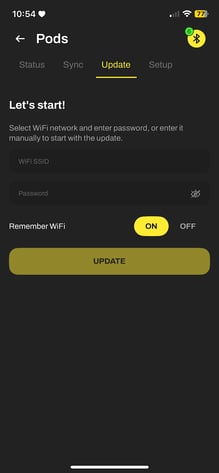
- Click on update and the pods will begin to update.
- Once they all have a green 0 on them, note this will take a bit to complete, click Yes at the bottom.
- The system will run a final check and if all is OK, your pods will now have the latest Firmware.
For iphone users where the update does not work on a whole set and it is required to seperate the set:
- You will need to perform an update twice. The first group should have pods 0, 1, 2, 3, and the second group should have pods 0, 4, and 5.
- Connect to your pods and sync them.
- Go to settings, pods, update, and check for updates.
- On the pods screen, you will see the download animation.
- Wait a couple of minutes for the update to finish. If you see a green letter 'O,' that means your update is successful.
- Click 'Yes,' wait for the final check, and finish your update.
- Repeat the same for the second set.
If you don't see the green letter 'O,' there may be an issue.
Here is a quick update troubleshooting guide:
If you see the letter 'S,' that means your wireless connection doesn't let you install the update. Either your network information is wrong, or you are not using a 2.4GHz connection, as we mentioned at the start. Please check that and try again.
If you see the letter 'P,' your wireless password was wrong. Please try again with the correct password.
If you see the letter 'X,' the pods lose the connection to the network. Please check if your connection is active. Now, you are ready to use your freshly updated Sportreact pods.