
Q: Why is the charger not charging any of the pods?
Please check the adapter for the charging dock. Try to plug the charging dock into another adapter you may have, as it may be that the adapter is no longer working.
Q: Why does 1 pod not want to turn off?
It could be possible that there is an issue with the On/Off button. Please check that it is not stuck or broken in some way.
Q: Why is one pod not charging and is consistently at 0% battery?
It could be an issue with the chip or the battery might be dead. Contact support for further assistance.
Q: Why is the timing gate losing connection in the middle of my session?
Check if the pods are full of battery and not turning off. If they are, check that the distance and height haven’t changed mid-session. You may need to reconnect the gate and start over.
Q: My pods are losing their sync mid session.
There are a few things that could be causing this.
First, please make sure you have a stable internet connection, as an unstable connection can sometimes cause the pods to lose sync.
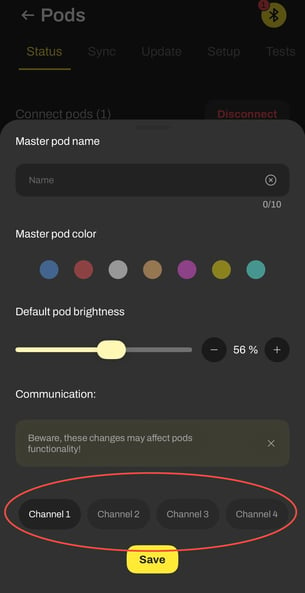
If you are indoors or using the system around other electronic devices, there may also be interference affecting the pod connection. To help with this, we have enabled 4 different channels for the pods.
Please try changing the channel by connecting the pods, then going to:
Settings → Pods → select the master pod
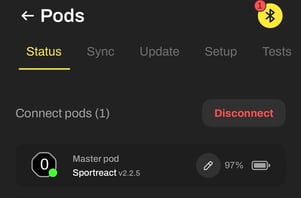
From there, you can choose a different channel and test if the connection improves.
You can repeat this process and test out which channel works best for the connection.
Q: Why can I not update the hardware?
Before proceeding with the hardware update, you will need to have an internet connection that the pods and app will connect to. Make sure that you have a 2.4 GHz wireless network in your range. Please note that the system is not able to connect to a 5GHz wireless network. If you have a 2.4GHz network, you can proceed further. If not, or if you are not sure about your Wi-Fi connection, there is an option to share a mobile hotspot network from your mobile phone.
For Android users, go to settings, connections, mobile hotspot, and change the band to 2.4ghz. You can also change your network name and password for easy access. Note that some Android phones may have different navigation settings.
For iOS users, go to settings, then personal hotspot. Make sure to enable ""Maximize Compatibility Mode"" to enable the 2.4GHz network. You can also change the hotspot password for ease of procedure. Please note that some iOS phones will not allow more than five connections, so you will need to update the system in groups while always having zero devices in each group.
In the next step, you will need to perform an update twice. The first group should have pods 0, 1, 2, 3, and the second group should have pods 0, 4, and 5. Connect to your pods and sync them. Go to settings, pods, update, and check for updates. If updates are available, click 'Update Now.' Type your 2.4GHz network name and password, and click 'Update.' On the pods screen, you will see the download animation. Wait a couple of minutes for the update to finish. If you see a green letter 'O,' that means your update is successful. Click 'Yes,' wait for the final check, and finish your update. Please bear in mind that if you use some iOS devices, you will need to do this step two times. The first time for pods 0, 1, 2, 3, and the second time for pods 0, 4, 5.
If you don't see the green letter 'O,' there may be an issue.
Here is a quick troubleshooting guide:
If you see the letter 'S,' that means your wireless connection doesn't let you install the update. Either your network information is wrong, or you are not using a 2.4GHz connection, as we mentioned at the start. Please check that and try again.
If you see the letter 'P,' your wireless password was wrong. Please try again with the correct password.
If you see the letter 'X,' the pods lose the connection to the network. Please check if your connection is active. Now, you are ready to use your freshly updated Sportreact pods.
Q: Can I make 2 sets of 3 pods?
Connect to your set, sync pods, go to settings, pods, setup, and press switch connected. After that, turn off those pods that you want to exclude from the set. Press next and navigate to step 3. You will see three pods. Click setup. After a few minutes, your new set will be ready, with the main pod connecting last. Just press connect, and your first set is ready. To set up a second set, go to pods, disconnect from the first set, come back to setup. Turn on the three new pods you want to include, follow the same procedure as in the first set, and connect them. Once you finish everything, try to connect to a Sportreact set once again, and you will see two sets in the results.
Q: Why can I not align a gate?
When creating a gate, make sure both pods are positioned at the same height, aligned directly across from each other, and placed far enough apart. Ensure there are no objects or visual distractions between them that could interfere with the signal.
Avoid placing gates near reflective surfaces such as white walls or mirrors, as the laser beam can reflect and disrupt detection. Position the gates at a sufficient distance from these surfaces to ensure accurate performance.
Q: Why are there no velocity, acceleration, power and force calculations?
Velocity cannot be calculated if there is no subscription, the athlete’s weight is not saved, or the workout distance is not defined. Distance is required to calculate velocity and acceleration, while acceleration and body weight are required to calculate force and power.
Q: Can I use the app offline?
Currently, we do not have an offline version of the app and are working on implementing it.
Q: Can multiple coaches use Sportreact PLUS with different accounts but on the same team?
Yes. Multiple coaches can use one login. Alternatively you can add members to your team. The "owner" of the PLUS subscription has to make sure that all the others are on his/her team and then everyone can access the benefits.
Q: Why can I connect the pods to my iPhone but cannot to my Android tablet?
Check that all the permissions are on- location permission and nearby devices.
Q: Why does the 0 pod battery drain so fast?
The main pod, also known as pod 0, is the sole connection between the Sportreact app and the rest of the pods. It is pulling the most data and using the most energy and is why its battery is used up a bit faster than the rest of the pods.
Q: Why is the sensor range not as long as I would like it to be outside in the sunlight?
When outside, try to keep the sensor out of a direct sunlight beam as sunlight will affect the range of the sensors if its hitting the pods directly.
Q: Why do my gates request a realignment when I start the drill?
Sometimes having a lot of athletes standing around the gates can interfere with the alignment.
Q: How do I save results without doing it manually?
If you turn on the leaderboard (tap the green live leaderboard button in any exercise template, custom activity or Community Hub activity of your choice) this will automatically save your results after each athlete.
Q: How do I make 2 sets of 3 pods to be used at different locations at same time?
Each set must be set up on its own, on 2 different devices. The account can be the same login but the sets must be set up separately. Turn all 6 on and put them in setup mode. Turn 3 off. Set up and sync 3 with device 1. Once done, set up and sync the remaining 3 with device 2.
Q: I have saved the reps of my guest athlete yet when I check, they are not available under My Analytics.
Data cannot be saved on a guest profile. Please create an athlete profile, or choose an existing one, to save and view data.
Q: Why are some numbers yellow and some green?
Green numbers mean the pods are synchronized and connected. Tapping a pod changes the display to show its battery percentage. Tap it again to show the pod ID in its assigned color, which may appear yellow if that is the assigned color. As the pod colors can be changed, this second tap will result in the assigned color to appear.
Still having trouble?
Send us:
- Your phone model
- Your Sportreact app version
- A clear description of the issue
- A short video showing the issue